







Get started - top tips and help
On this page you'll find some simple guidance to help you get started and then more detailed answers to frequently asked questions. For a quick start guide, see our introduction page.
If you need more help you can email [email protected] and we will reply.
Browsing the site
Browsing articles is easy. Just type what you are looking for into the search box at the top of the page, or go to the search page for a full text search. Alternatively, look through the lists of subject categories in the drop-down menu.
Registering
Why register?
- It's free and it only takes 2 minutes to do.
- If you register, you will be able to create new articles, edit existing articles (unless they have been protected) and comment on existing articles.
- You will be able to create a PAGE ABOUT ME with details about yourself and links to your own web site.
- You will be able to include a signature in articles you write that will link to your PAGE ABOUT ME and your profile will then appear at the top of the article.
- Other people will be able to contact you (if you enable this feature).
- You will be able to track articles you are interested in.
- You will be able to see a record of everything you have written.
- You will be able to protect articles you create.
Just click REGISTER, either here or at the top of the page, enter your name, password and username. A confirmation email will be sent to you and that's it. You can fill in other details if you want, or go back and add them another time by logging in and clicking EDIT MY PROFILE at the top of the page.
Creating new articles
Creating an article is easy. Just log in then click on the big orange button.

You'll be asked to check your article doesn't already exist, then a message will appear asking you if you want to create it. Just click on the link and a new article will be created for you.
Make sure you give your article a clear, plain language title otherwise people won't know what it's about and search engines like Google won't find it. For more information have a look at Optimising your article for search engines.
Why not watch our video tutorial: how to create an article on YouTube.
Writing and editing articles
The most reliable way to write an article is to create it from scratch using the text editor provided. Just create your article and start typing.
You can also write your article in another application (such as word) and paste it into the text editor, but make sure the formatting is very simple - basic headings, bulleted lists, numbered lists and hyperlinks - our text editor will strip out any more complex formatting, or you can remove all formatting yourself by pasting as plain text.
Save your work regularly, just in case.
Writing style
Think encyclopaedia not magazine and be neutral not biased. You should never have to write 'I' or 'we'. For more guidance see our quick style guide.
Inserting Images
Put the cursor in the place you want to insert the image, and click the insert image button.

You'll be asked to upload the image to the wiki. Make sure to remember what you call it, then go back to your article. Type in the name of your image and it will appear in the dialogue box. Select it, click OK and the image will be inserted.
Note: Make sure your image file name only includes numbers and letters. Symbols may cause the image insertion to fail.
Inserting hyperlinks
Internal links are created automatically. If your article contains a phrase that is the title of another article, a link will be generated when you save the page. These links will not appear when you are editing your article, only when it is saved and viewed.
To create links to other sites, just click the create link button.

Then type in the web address. You must start the address with the http:// bit. The easiest way to do this is to open the page you want to link to, then copy the full address from your browsers address bar.
Attaching files
First upload your file to the site. This can be done by clicking the 'UPLOAD FILE' link in the 'site info/tools' menu. Be careful to keep a note of the exact name of the file you upload. Then open your article and click the insert link button.
Type in the name of your file and it will appear in the dialogue box below. Select the file, and a link to it will be inserted into the article.
References and footnotes
If you want to include a reference in your article, either insert a hyperlink into the body of the text (if it's an online reference) or insert a number in brackets in the body of the article (1) and the full reference at the end of the article.
(1) reference.
See Parenthetical referencing for more information.
Adding your user signature and profile to an article
If you're logged in and you are the main, or sole author of an article you can insert your user signature at the bottom of your article which will automatically link to your PAGE ABOUT ME. Your profile will then appear at the top of the article.

To do this, just log in, open the article, go to the bottom of the text and click the insert signature button.

If you have significantly developed an existing article, you can change the author by deleting the existing signature and adding your own. Previous author's details will still appear in the article history.
Create a level 1 heading at the bottom of your article and call it 'Related articles on Designing Buildings'. Then put a bulleted list of the titles of articles on Designing Buildings that are related to the article you are writing. When you save the article, the list will be recognised by our system and duplicated in a box at the top of the page to the right of the article.

Allocating categories
It's important to allocate categories to your articles so other people can find them easily. Just edit your article, expand the relevant section of the category tree that appears at the bottom of the page, and then check the tick boxes of the categories you want to add.

Protecting an article
If you are a registered user, you are logged in, you are the main or only author of an article, and you are an expert who does not want other people to be able to change your article, then you can protect it. This will prevent others from changing your article.
Simply save your article, then from the options at the bottom of the article, click 'PROTECT' and select 'restrict editing to authors'.
Be aware that by doing this, you become responsible for that article. If you do not keep the article up to date, or if we receive requests from other users wanting to contribute to the article, we may un-protect it.
Note: You have to have edited an article whilst logged in to be able to protect it.
Tracking changes
If you have written an article, or if you have a special interest in the subject, you can track any changes that are made to it. There are several ways to do this.
You can see a history of all changes made to an article by clicking 'See full history' at the top of the article.
You can add the article to your 'WATCH LIST' by clicking 'watch'. If you click on the link to your watch list when you are logged in, you will be shown a summary of changes to the articles on your watch list.
If you click on the FEED link that appears at the bottom of all pages it will show you a record of all recent changes that have been made across the entire site.
Transclusion
Transclusion allows parts of articles on Designing Buildings Wiki to be included in other articles on Designing Buildings Wiki. Click here for detailed instructions.
Problems writing articles
Formatting
Online text editors do have limitations, particularly with complex formatting. We advise you to keep your formatting as simple as possible and to SAVE REGULARLY.
If you are having a problem formatting your article, it may be that you have imported it from another application that the editor has trouble processing. Try inserting text using the 'paste as plain text' option.

If you are still having difficulties, try highlighting the text and then clicking the 'remove formatting' button.

Or save the article and re-open it.
Losing your work
We recommend you save your work regularly. You should then be able to find previous saved versions of your work in the article history (click the 'See full history' at the top of the article). If you are still having difficulties, contact us at [email protected], and as long as you have saved your article we should be able to recover it for you.
Unable to edit an article
Some articles are protected from any editing, see 'Why are some articles locked' in the FAQ's below?
We may also block users or IP addresses from editing articles if they are carrying out inappropriate activity on the site such as adding spam articles. If you think you have been wrongly blocked, email us at [email protected].
If you are accessing Designing Buildings Wiki from a large organisation you may find you are locked out because other users from your IP address have already created or edited articles that day, or have been blocked because of inappropriate activity. Try using a device from a different IP address,email us at [email protected], or try again tomorrow.
Delete or change the title of an article
Email us at [email protected] and we will do it for you.
Other frequently asked questions
Can I edit an article written by someone else?
Unless it has been locked (see below), then yes you can. Designing Buildings Wiki is a collaborative site, we encourage multiple authors to contribute to the development of articles.
Why are some articles locked (protected)?
Some pages are locked because they contain expert or complex information that would suffer if it was edited by multiple authors. You can propose changes to locked articles by clicking the 'submit comment' button at the end of the article. You can also ask us to unlock articles.
How do I report abuse?
If you think there's a problem please let us know by clicking the 'REPORT ABUSE' link at the bottom of the page. Alternatively you can click the 'SUBMIT COMMENT' button at the bottom of articles, or you can email [email protected].
How is the site is moderated?
We try to keep an eye on any changes that users make to the site, but we are also reliant on you to tell us about problems. If you think there is a problem, you can either fix it yourself (just click EDIT) or let us know using the 'REPORT ABUSE' link at the bottom of the page, clicking 'SUBMIT COMMENT' at the bottom of articles or by emailing [email protected].
What are your terms and conditions?
Click here to see our terms and conditions.
Is promotional content allowed?
No.
Articles must be impartial. The best way to achieve this is to think about what someone else would write. You should not insert hyperlinks to your own website in articles, other than in a references section, and only if there is specific reference material on your website that someone reading the article would find useful.
But.....
You can do as much promotion as you like on your PAGE ABOUT ME. You can then add your signature to any articles you have written, that will automatically link to your PAGE ABOUT ME and your profile will appear at the top of the article.
How do I carry out a full text search?
If you want to search for articles containing specific text, click here to go to our special search page.
How do I cite articles on Designing Buildings?
See Citing an article on Designing Buildings.
Anything else
Email us at [email protected] and we will do our best to help.
Featured articles and news
Investors in People: CIOB achieves gold

Reflecting a commitment to employees and members.

Scratching beneath the surface; a guide to selection.
ECA 2024 Apprentice of the Year Award

Entries open for submission until May 31.
UK gov apprenticeship funding from April 2024

Brief summary the policy paper updated in March.

For the World Autism Awareness Month of April.
70+ experts appointed to public sector fire safety framework
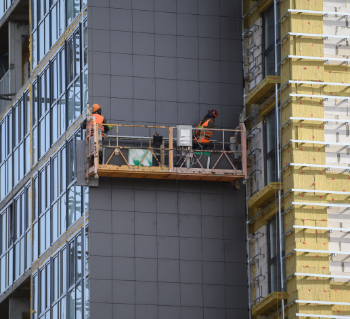
The Fire Safety (FS2) Framework from LHC Procurement.
Project and programme management codes of practice
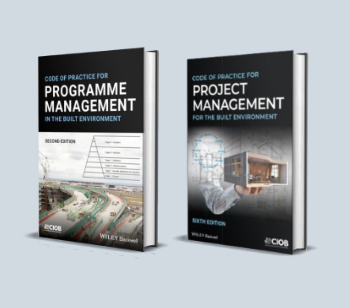
CIOB publications for built environment professionals.
The ECA Industry Awards 2024 now open !

Recognising the best in the electrotechnical industry.
Sustainable development concepts decade by decade.
The regenerative structural engineer
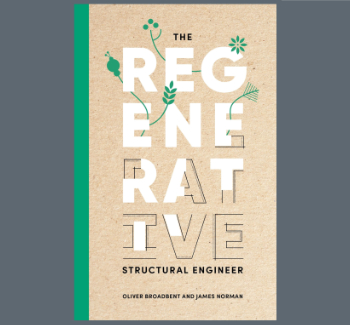
A call for design that will repair the natural world.
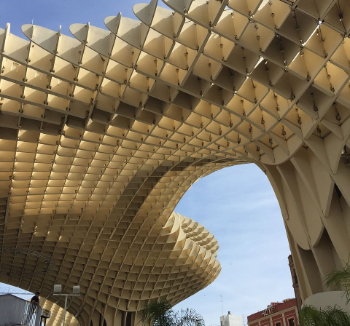
Buildings that mimic the restorative aspects found in nature.
CIAT publishes Principal Designer Competency Framework
For those considering applying for registration as a PD.
BSRIA Building Reg's guidance: The second staircase
An overview focusing on aspects which most affect the building services industry.
Design codes and pattern books
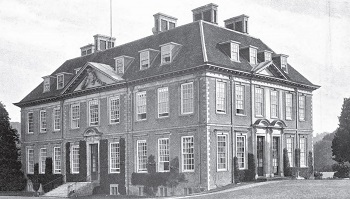
Harmonious proportions and golden sections.
Introducing or next Guest Editor Arun Baybars

Practising architect and design panel review member.
Quick summary by size, shape, test, material, use or bonding..
Comments